

Working with files#
Learning objectives
By the end of this lab, you will be able to:
Understand the difference between absolute and relative file paths
Open, read, write, and append to text files
Part 1: Introduction to files#
So far, all the data in our programs has been temporary: variables exist only while the program runs. When the program ends, all data is lost. Files allow us to store data permanently on disk, so it persists between program executions.
Why work with files?#
Persistence: Data survives after the program ends
Data sharing: Files can be shared between programs or people
Large data: Files can store more data than would fit in memory
Input/Output: Read configuration, process datasets, generate reports
File paths: absolute vs relative#
Before opening a file, you need to specify its location using a path.
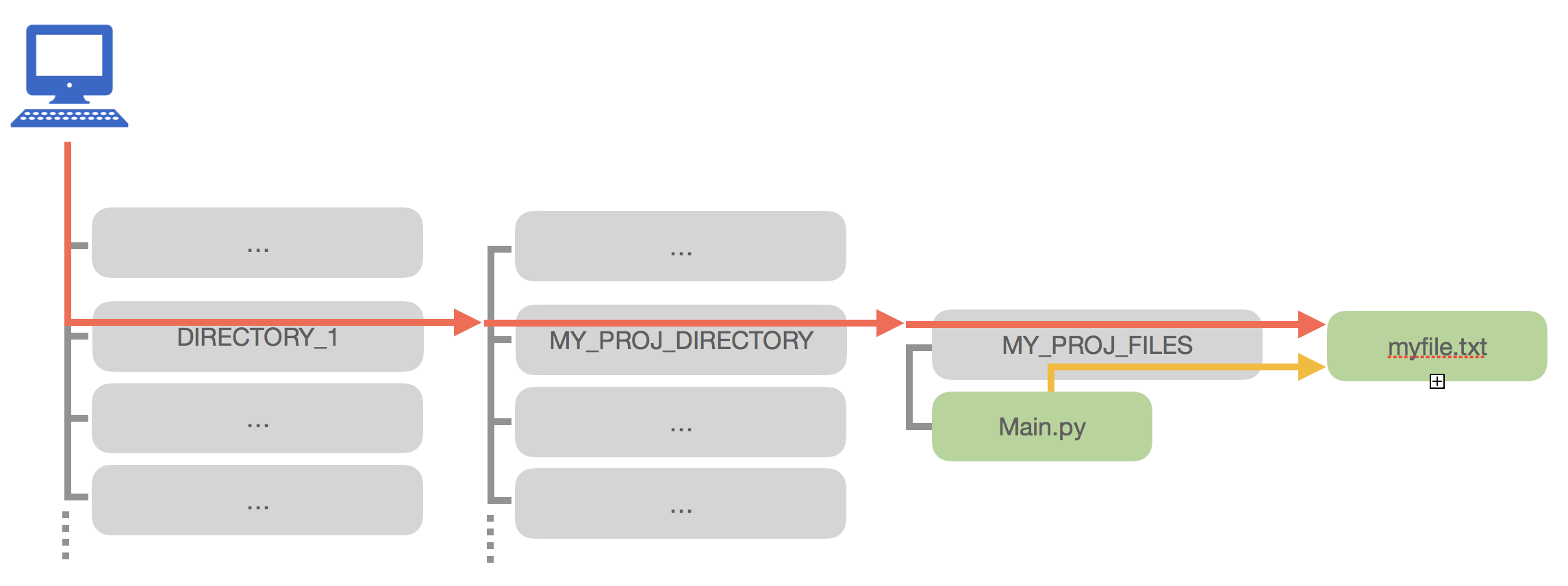
Fig. 64 The difference between absolute and relative paths. An absolute path starts from the root of the filesystem, while a relative path starts from the current working directory.#
Absolute path: The complete path from the root of the filesystem
Windows:
C:\Users\student\Documents\data.txtmacOS/Linux:
/home/student/Documents/data.txt
Relative path: Path relative to the current working directory
data.txt(file in current directory)data/file.txt(file in a subdirectory)../other/file.txt(file in a sibling directory)
For this lab, I recommend keeping all your files in your python_laboratory folder and using relative paths.
Part 2: Working with text files#
Opening and closing files#
Python uses the open() function to access files. The basic syntax is:
file = open("filename.txt", "r")  # Open for reading
# ... do something with the file ...
file.close()
The second argument specifies the mode (what you want to do with the file):
"r"– Read (default): Open for reading, error if file doesn’t exist"w"– Write: Create new file or overwrite existing"a"– Append: Add to the end of existing file (or create new)
The context manager: with statement
Always use the with statement when working with files. It automatically closes the file when done, even if an error occurs:
with open("filename.txt", "r") as file:
    content = file.read()
# File is automatically closed here
This is safer and cleaner than manually calling file.close().
### Writing to text files

Let's start by creating a file with some Nietzsche quotes:

```{code-cell} python
quotes = [
    "The devil is God's idleness on the seventh day. - Nietzsche, The Antichrist",
    "Is man merely a mistake of God's? Or God merely a mistake of man's? - Nietzsche, Twilight of the Idols",
    "In heaven, all the interesting people are missing. - Nietzsche, Letter to Franz Overbeck"
]

with open("nietzsche_quotes.txt", "w") as file:
    for quote in quotes:
        file.write(quote + "\n")  # \n adds a newline after each quote
The newline character
When writing lines to a file, you need to explicitly add \n at the end of each line. Unlike print(), the write() method does not add a newline automatically.
Reading from text files#
There are several ways to read a file:
Method 1: read() – Read entire file as a single string
with open("nietzsche_quotes.txt", "r") as file:
    content = file.read()

print(content)
print(f"Total characters: {len(content)}")
---------------------------------------------------------------------------
FileNotFoundError                         Traceback (most recent call last)
Cell In[1], line 1
----> 1 with open("nietzsche_quotes.txt", "r") as file:
      2     content = file.read()
      4 print(content)

File ~/work/thinkcompute.github.io/thinkcompute.github.io/.venv/lib/python3.11/site-packages/IPython/core/interactiveshell.py:343, in _modified_open(file, *args, **kwargs)
    336 if file in {0, 1, 2}:
    337     raise ValueError(
    338         f"IPython won't let you open fd={file} by default "
    339         "as it is likely to crash IPython. If you know what you are doing, "
    340         "you can use builtins' open."
    341     )
--> 343 return io_open(file, *args, **kwargs)

FileNotFoundError: [Errno 2] No such file or directory: 'nietzsche_quotes.txt'
Method 2: readline() – Read one line at a time
with open("nietzsche_quotes.txt", "r") as file:
    first_line = file.readline()
    second_line = file.readline()

print(f"First line: {first_line}")
print(f"Second line: {second_line}")
Method 3: readlines() – Read all lines into a list
with open("nietzsche_quotes.txt", "r") as file:
    lines = file.readlines()

print(f"Number of lines: {len(lines)}")
print(f"Lines: {lines}")
Newline characters in readlines()
Notice that each line includes the \n character at the end. Use .strip() to remove it when processing each line.
Appending to files#
Use mode "a" to add content to an existing file without overwriting:
new_quote = "A thinker sees his own actions as experiments and questions. - Nietzsche, The Gay Science"

with open("nietzsche_quotes.txt", "a") as file:
    file.write(new_quote + "\n")

# Verify the addition
with open("nietzsche_quotes.txt", "r") as file:
    for line in file:
        print(line.strip())
Practical example: Counting words in a file#
with open("nietzsche_quotes.txt", "r") as file:
    content = file.read()

# Count words
words = content.split()
print(f"Total words: {len(words)}")

# Count lines
lines = content.strip().split("\n")
print(f"Total lines: {len(lines)}")

# Find quotes from a specific work
antichrist_quotes = []
for line in lines:
    if "Antichrist" in line:
        antichrist_quotes.append(line)
print(f"Quotes from The Antichrist: {len(antichrist_quotes)}")
Summary#
In this lab, you learned:
File paths: The difference between absolute and relative paths
Text files: How to open, read, write, and append to text files using
open()and thewithstatement